

Opening the terminal
There are two ways to access the terminal:From Settings
- Go to the Settings page in your Coral dashboard.
- Scroll to the Tools & Access section.
- Click “Open Terminal”.
From the Chat page
The Computer Panel on the chat page includes a Terminal tab for quick shell access without leaving the conversation. See Chat — Computer Panel for details.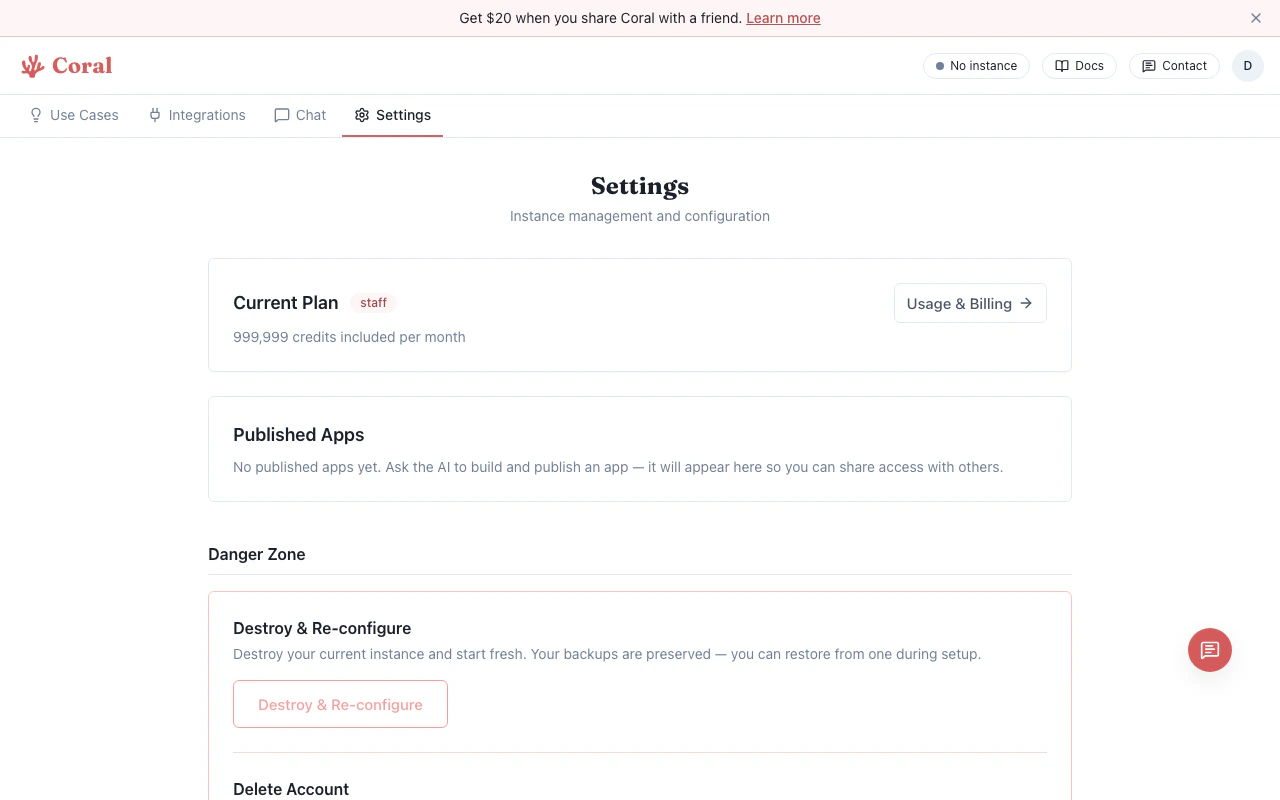
Settings page with Terminal access
What you can do
The terminal gives you a standard Linux shell with access to:- OpenClaw CLI — Run
openclawcommands to inspect or modify your assistant’s configuration. - File system — Browse and edit files in your sandbox (configuration, logs, data).
- Package management — Install additional tools or dependencies.
- Debugging — Inspect running processes, view logs, and troubleshoot issues.
Connection details
- The terminal connects over a secure WebSocket through the Coral proxy. Your sandbox credentials never reach the browser.
- Sessions are authenticated with a time-limited ticket (30-minute TTL).
- If the connection drops, close the tab and re-open from the Settings page.
When to use the terminal
Most users won’t need the terminal for day-to-day use. It’s primarily useful for:- Advanced OpenClaw configuration not exposed in the Control UI
- Debugging issues with your assistant
- Installing custom tools or scripts
- Viewing raw log files