

Opening the Control UI
You can open the Control UI from two places:- Integrations page — Click “Open OpenClaw Control Panel” at the top of the page.
- Settings page — Scroll to the Control Panel section and click the button.
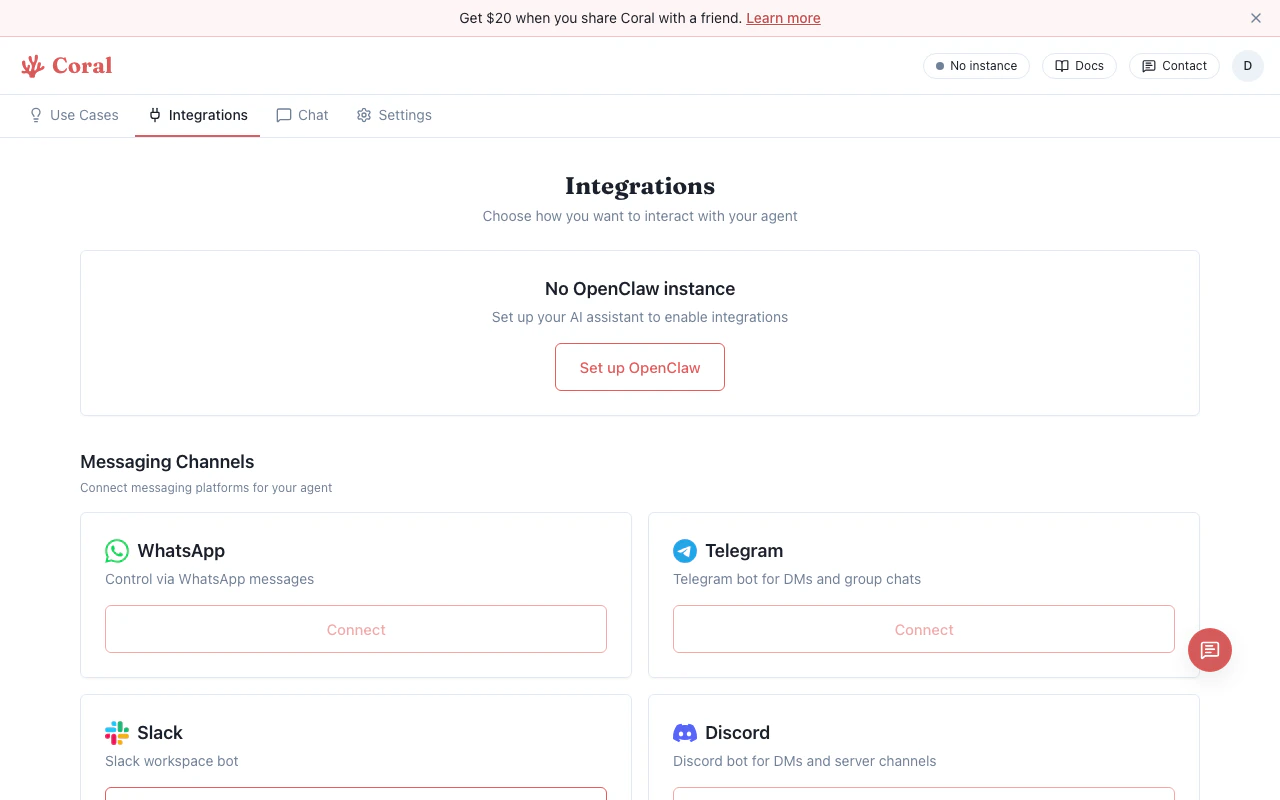
Integrations page with Control Panel button
What you can do
The Control UI provides access to the full range of OpenClaw features:- Conversations — Browse and search your chat history across all connected channels.
- Tools — View and configure the tools available to your assistant (web search, code execution, file operations, etc.).
- Skills — Install and manage skill packages that give your assistant domain-specific capabilities.
- Providers — View your configured AI providers and model settings.
- Settings — Adjust assistant behavior, system prompts, and advanced gateway configuration.
The Control UI connects directly to your OpenClaw gateway. Changes you make here take effect immediately — there’s no separate deploy or restart step.