Backups & Restore

Coral automatically backs up your sandbox so you can recover from mistakes or roll back to a previous state. You can also create manual backups at any time.

Automatic backups

Coral runs a two-tier backup strategy for every active sandbox:
TierFrequencyRetentionPurpose
RollingEvery 4 hoursLatest only (overwritten each cycle)Quick recovery from recent issues
DailyOnce per dayKept for 3 daysProtection against longer-term problems
Backups are encrypted with a per-user key and stored securely. They capture your full OpenClaw configuration, conversation history, and installed tools.
Automatic backups only run while your sandbox is active. If your sandbox is paused, no new backups are created, but existing backups are retained.

Creating a manual backup

  1. Go to the Settings page.
  2. Scroll to the Backup & Restore section.
  3. Click “Create Backup”.
The backup runs in the background and typically completes in under a minute. Once finished, it appears in the backup list below.
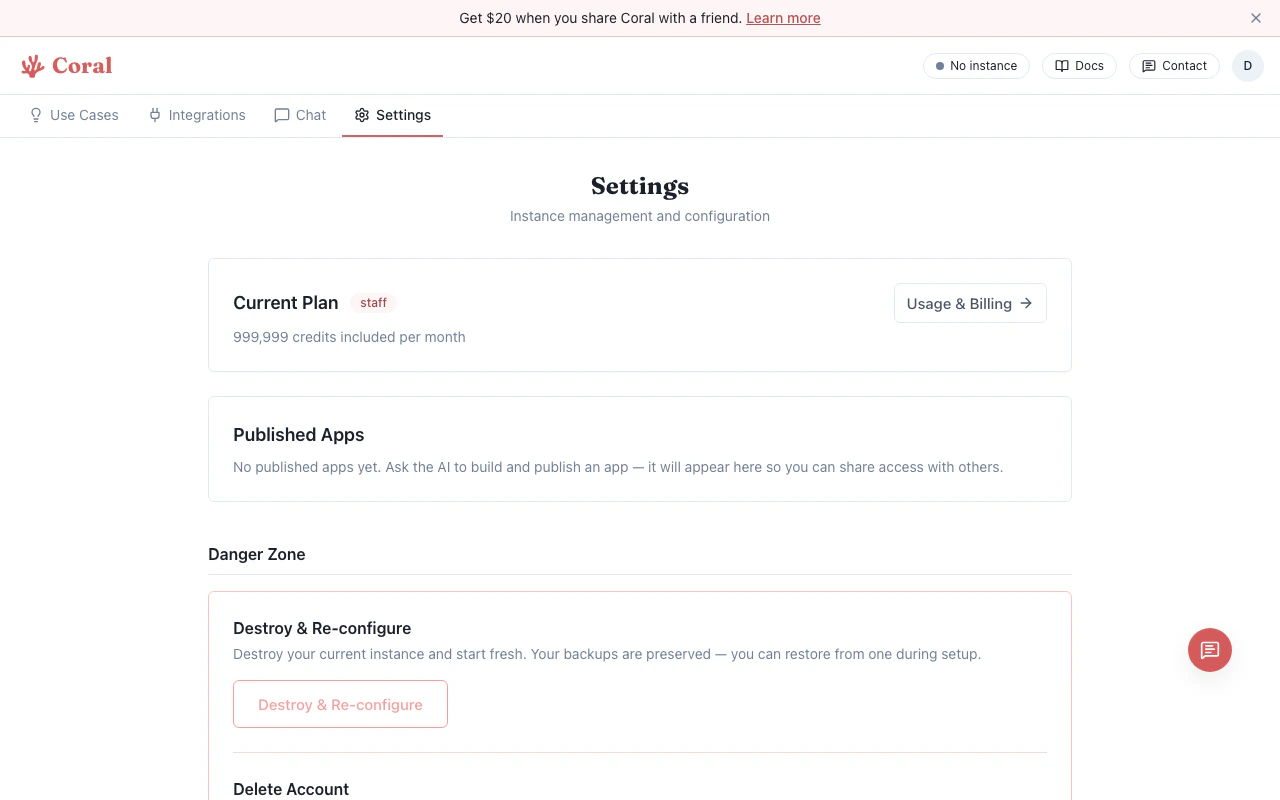
Coral settings page showing backup section

Restoring from a backup

  1. Go to the Settings page.
  2. Scroll to the Backup & Restore section.
  3. Find the backup you want to restore and click “Restore”.
  4. Confirm the restore action.
Restoring replaces your current sandbox state with the backup contents. Any changes made after the backup was taken will be lost. Consider creating a fresh backup before restoring if you want to preserve the current state.
The restore process takes 1-2 minutes. Your sandbox will be temporarily unavailable during the restore.

What’s included in a backup

  • OpenClaw configuration (~/.openclaw/openclaw.json)
  • Conversation history and session data
  • Installed tools and skills
  • Custom files and scripts in your sandbox

What’s not included

  • The sandbox operating system and base packages (these are rebuilt from the standard image on restore)
  • Temporary files in /tmp
  • Running process state (your assistant restarts fresh after a restore)