

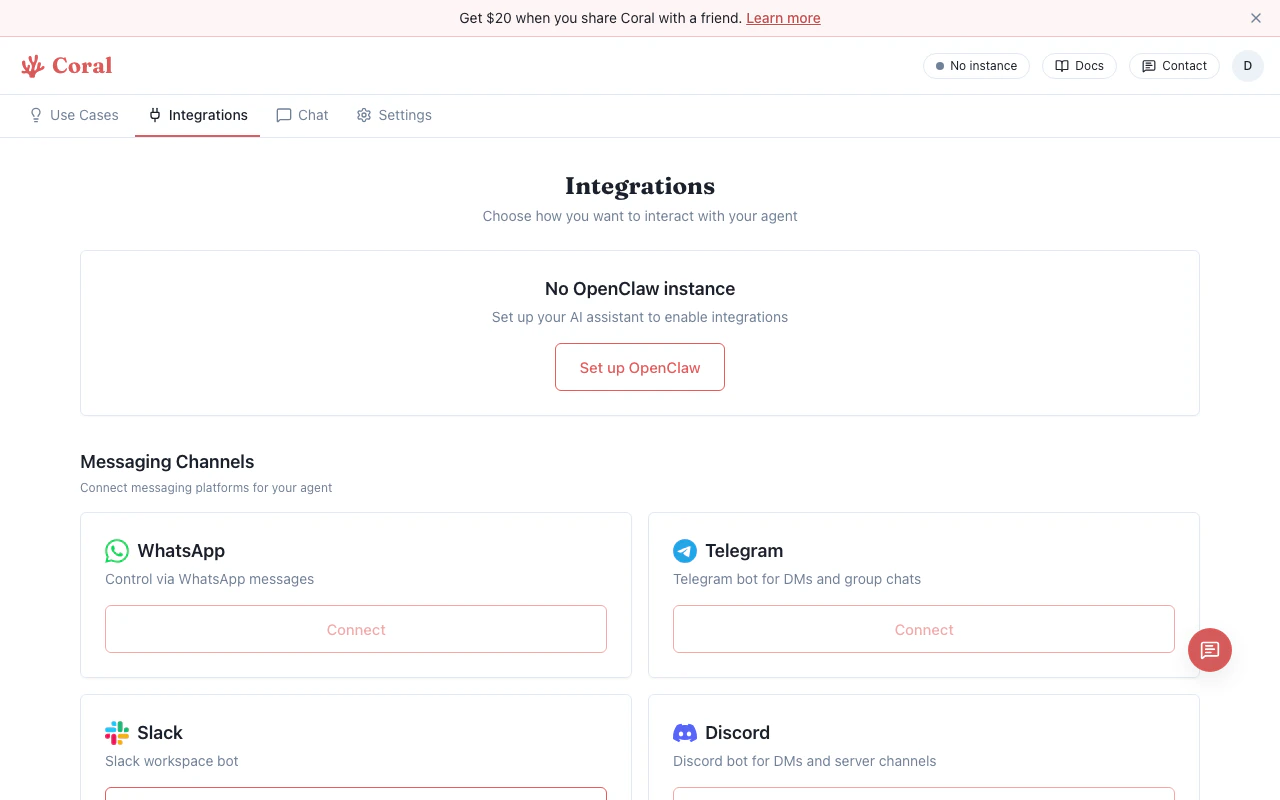
Integrations page with skills
Skill categories
Skills are organized into four sections based on their current state:Active
Fully configured and ready to use. Your agent invokes these automatically when relevant. Each active skill card shows a green “Active” badge and offers:- “Change key” — Update the API key for this skill
- “Turn off” — Disable the skill without removing it
- “Docs” — Link to the skill’s documentation (when available)
Needs Setup
Installed but missing an API key or configuration. These cards are highlighted in blue. Click “Set [KEY_NAME]” to enter the required key inline — paste your key, click Save, and the skill becomes active immediately.Disabled
Installed and configured but turned off. Click “Turn on” to re-enable. The skill becomes active instantly — no restart needed.Available to Install
Skills that require additional software (binaries) not yet present in your sandbox. Each card lists the missing dependencies (e.g., “Requires ffmpeg”) and shows an “Ask agent to install” button. Clicking it opens the Chat page with a pre-filled message asking your assistant to install the needed software.Configuring API keys
Many skills require external API keys. You can provide these in two ways:- Inline on the skill card — In the Needs Setup section, click “Set [KEY_NAME]” and paste your key directly. This is the fastest path for a single key.
- Via Environment Variables — Go to Settings > Environment Variables and add the key there. This is better for managing multiple keys at once. See Environment Variables.
Enabling and disabling skills
- Active skills → click “Turn off” on the card
- Disabled skills → click “Turn on” on the card
Installing missing dependencies
For skills in the “Available to Install” section:- Click “Ask agent to install”
- The Chat page opens with a message like “Please install [skill name]”
- Your assistant installs the required binaries via the terminal
- Return to the Integrations page to see the skill move to Active or Needs Setup
Skill metadata
Each skill card shows:- Name and emoji — Descriptive label for the skill
- Source badge — Whether the skill is “bundled” (ships with OpenClaw) or from an external source
- Description — Brief explanation of what the skill does
- Docs link — Link to the skill’s homepage or documentation (when available)