

Step 1: Sign in
Navigate to Coral and sign in with your Google account, or create an account with email and password.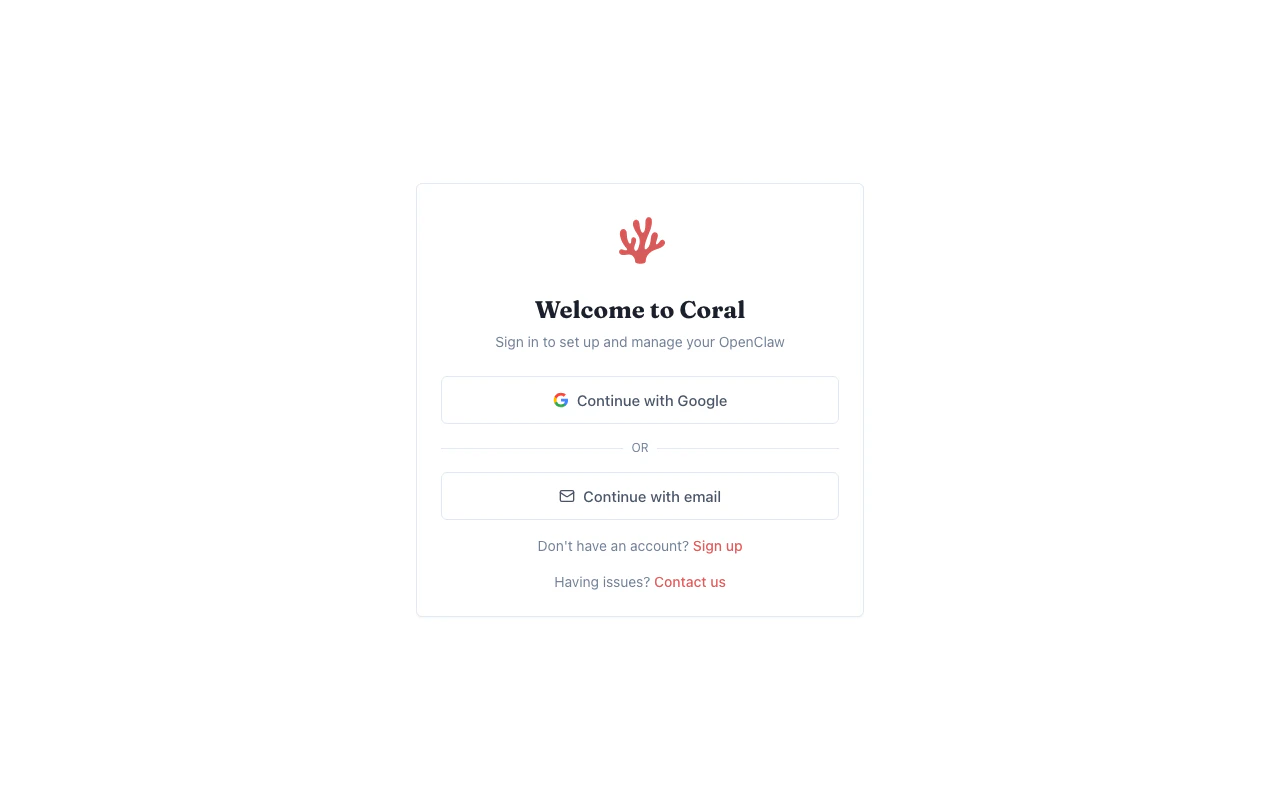
Coral sign-in page
Step 2: Choose a plan
After signing in, you’ll be prompted to choose a plan. Each plan includes a monthly credit allowance for AI model usage. The Standard plan ($50/mo, 5,000 credits) offers a 7-day free trial — no payment required upfront. See Billing & Credits for full plan details.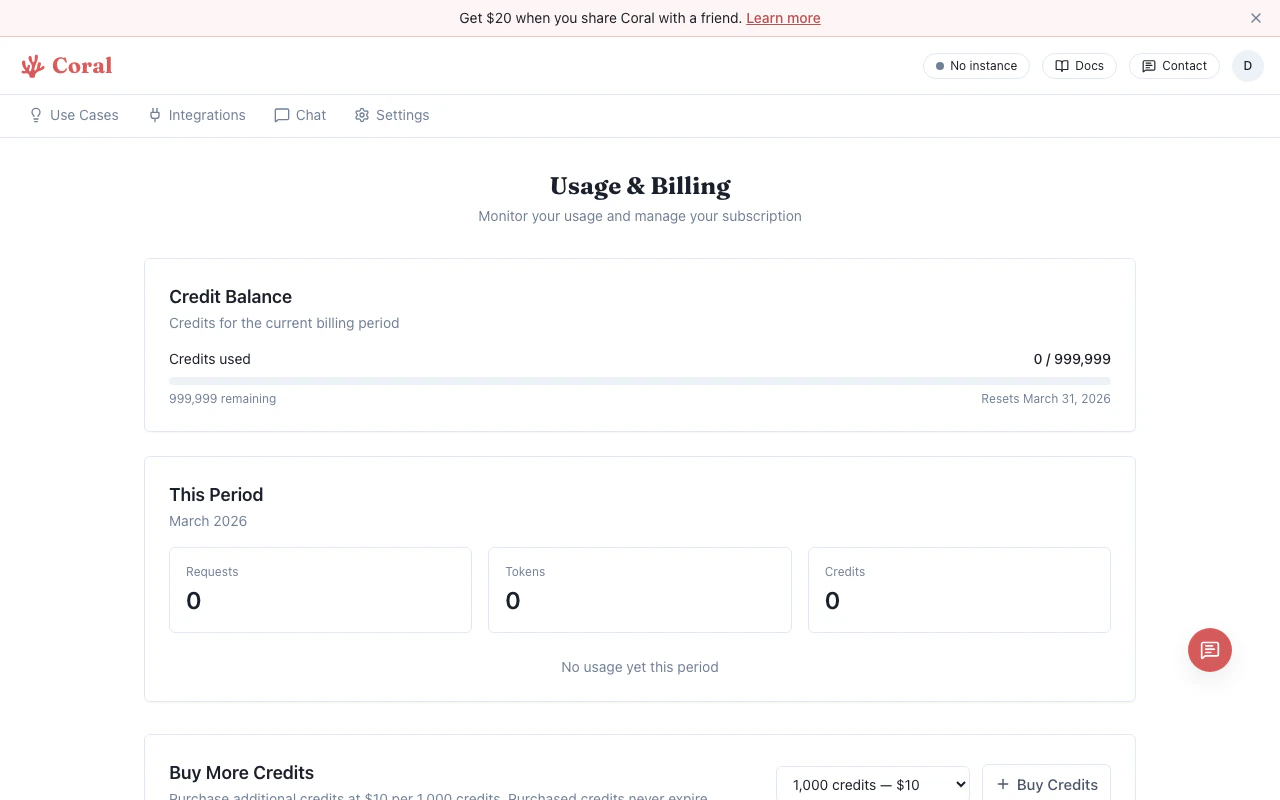
Usage & Billing page
Step 3: Configure your assistant
The setup wizard asks two things:- AI provider — Choose “Use our API keys” (recommended) to get started immediately, or “Bring your own key” if you have your own API key or ChatGPT/Codex subscription. See Bring Your Own Key for supported providers.
- Agent name — Give your assistant a name (defaults to “Coral”).
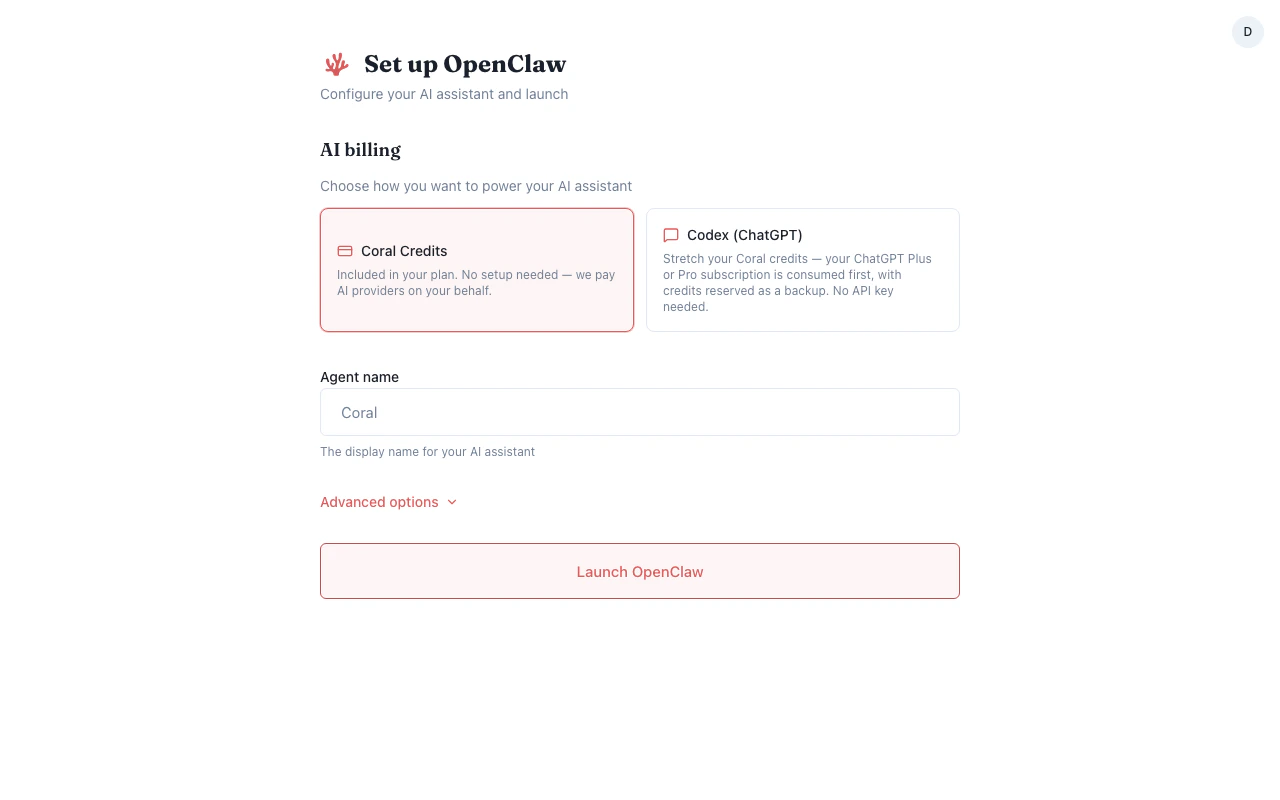
Onboarding wizard
Step 4: Start chatting
Once your sandbox is ready, you’ll land on the chat page. Your assistant defaults to the Standard model tier (Claude Sonnet 4.6) — you can change this anytime in Settings. Type a message to start a conversation.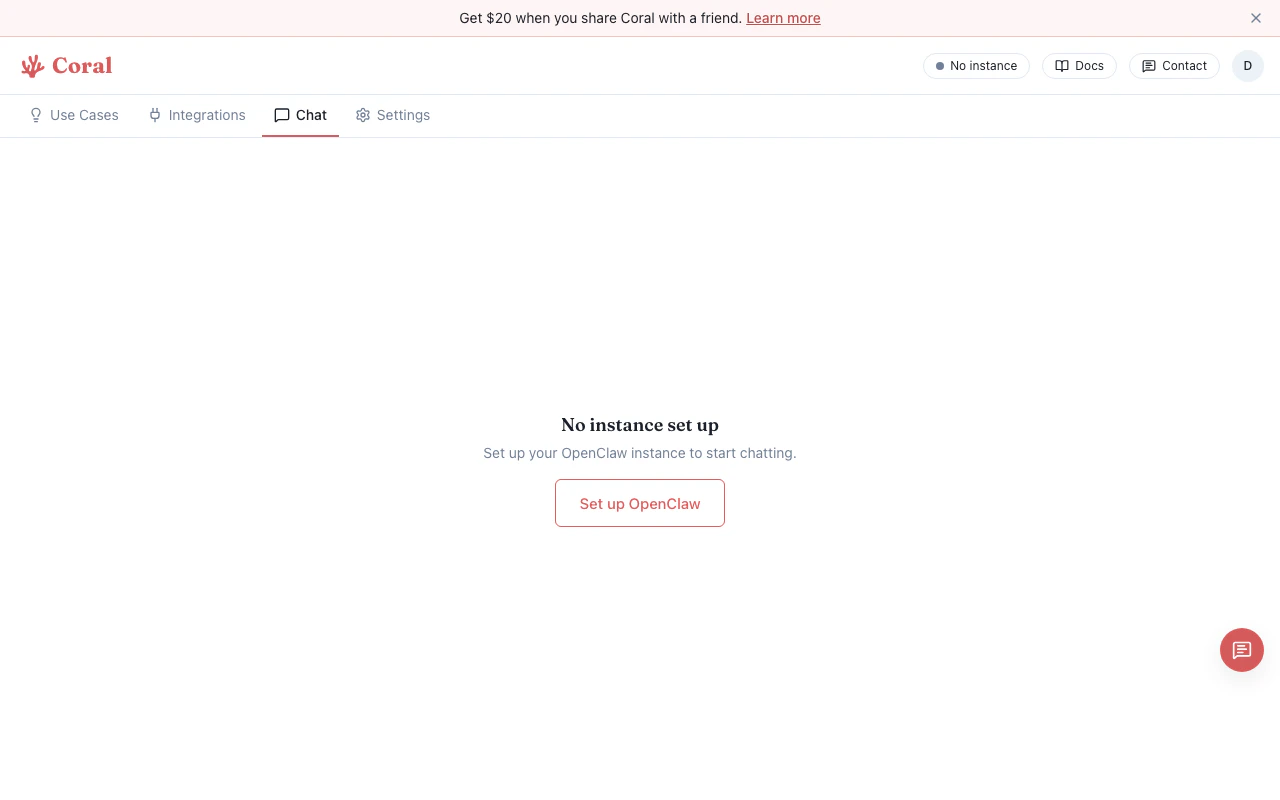
Chat page
- Attach files — Drag and drop or click the attachment button to share images and documents.
- Browse use cases — Visit the Use Cases tab to discover pre-built prompts for common tasks.
What’s next
Skills
Extend your assistant with web search, Notion, and more.
Models
Switch between Light, Standard, and Pro model tiers.
Integrations
Connect your assistant to Discord, WhatsApp, or Slack.
Billing & Credits
Manage your plan and track credit usage.
Use Cases
Try pre-built workflow templates.
Control UI
Access the full OpenClaw dashboard for advanced configuration.