

Day 1 — Your first useful thing
Send a real task, not a test
The most common first message is something like “hello” or “what can you do?” Both are reasonable, but neither tells you anything meaningful about what daily life with OpenClaw looks like. Instead, start with something you actually need today. Examples that show OpenClaw’s strengths immediately:- “Research the top 5 competitors to [your company] and summarize their pricing models in a table.”
- “Draft a reply to this email: [paste the email].”
- “I have a meeting with [person] tomorrow. Look them up and give me a quick briefing.”
- “Set up a daily 8am summary of the top AI news, delivered to me here in chat.”
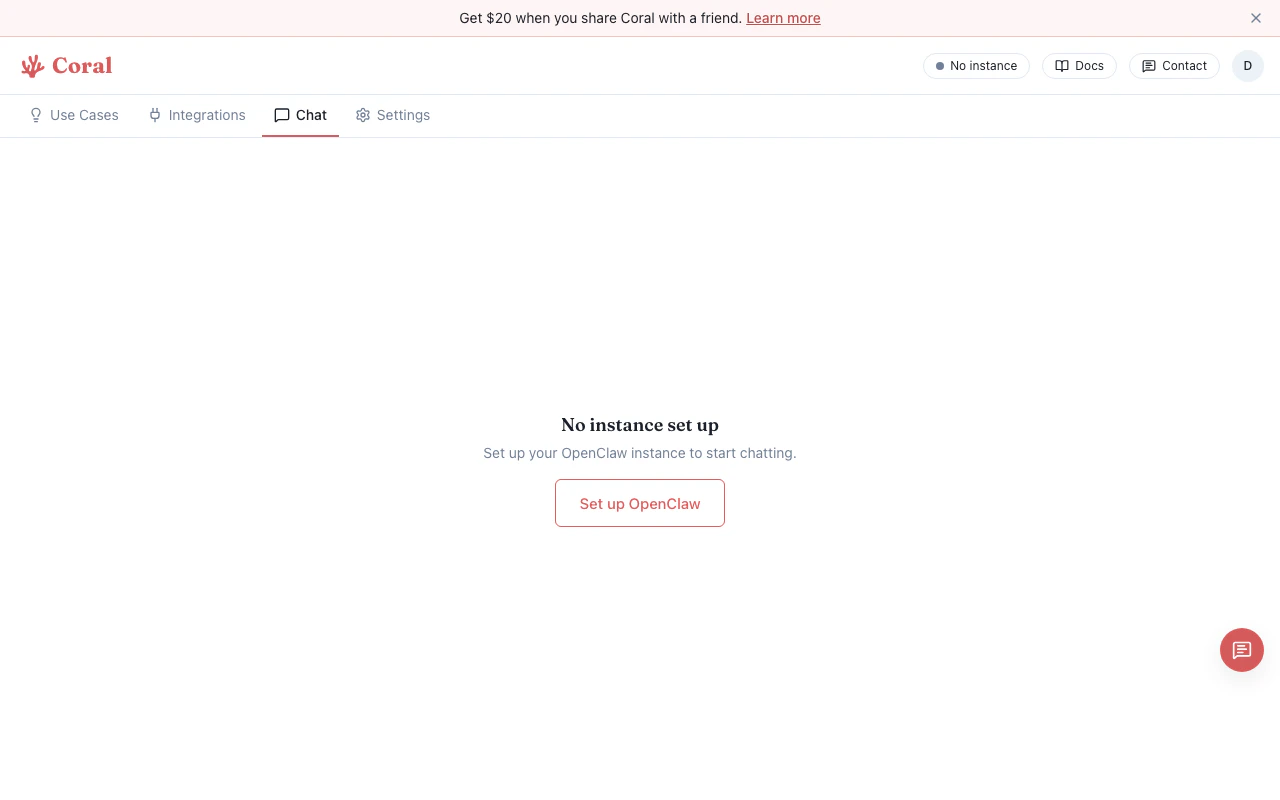
Chat page
Connect a messaging channel
The single highest-leverage action in your first day is connecting a messaging channel. Once OpenClaw is in your WhatsApp, Telegram, Discord, or Slack, it becomes ambient — you interact with it throughout the day without switching apps or opening a browser. Go to the Integrations page and connect at least one: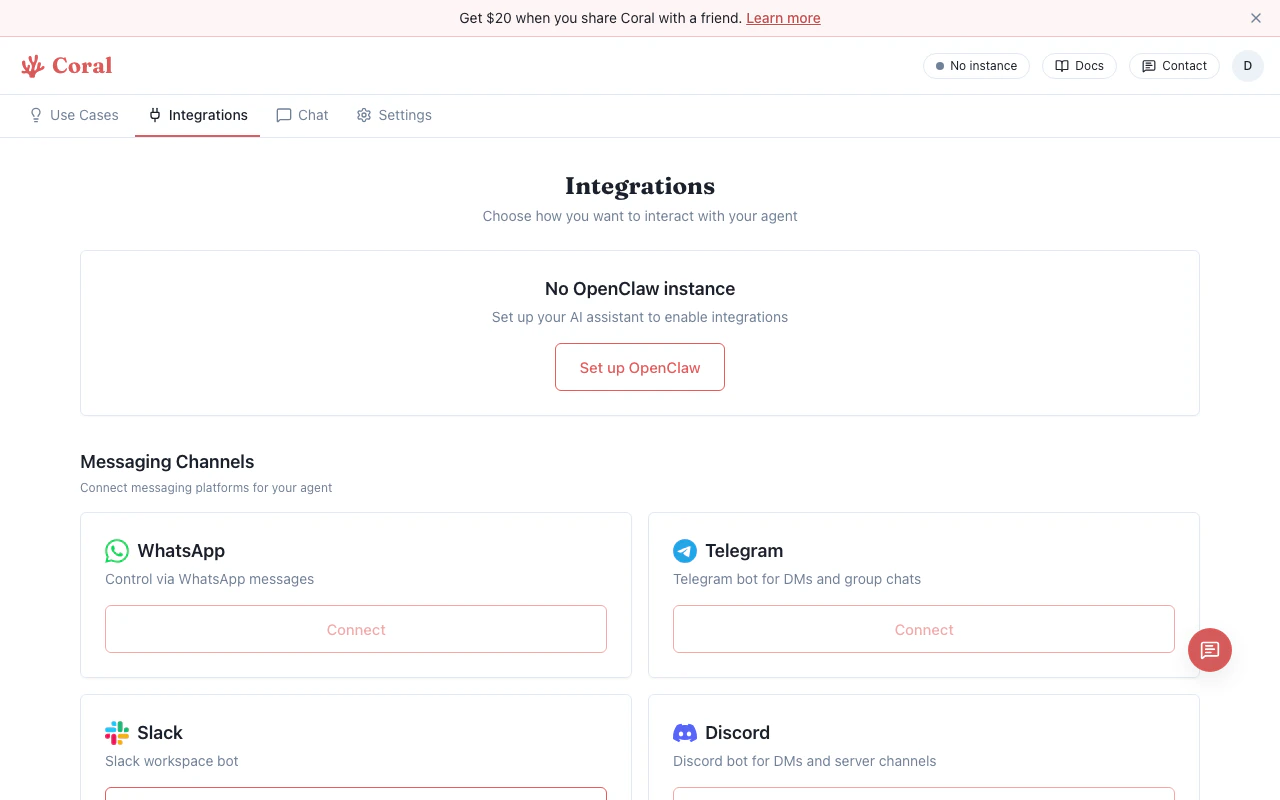
Integrations page
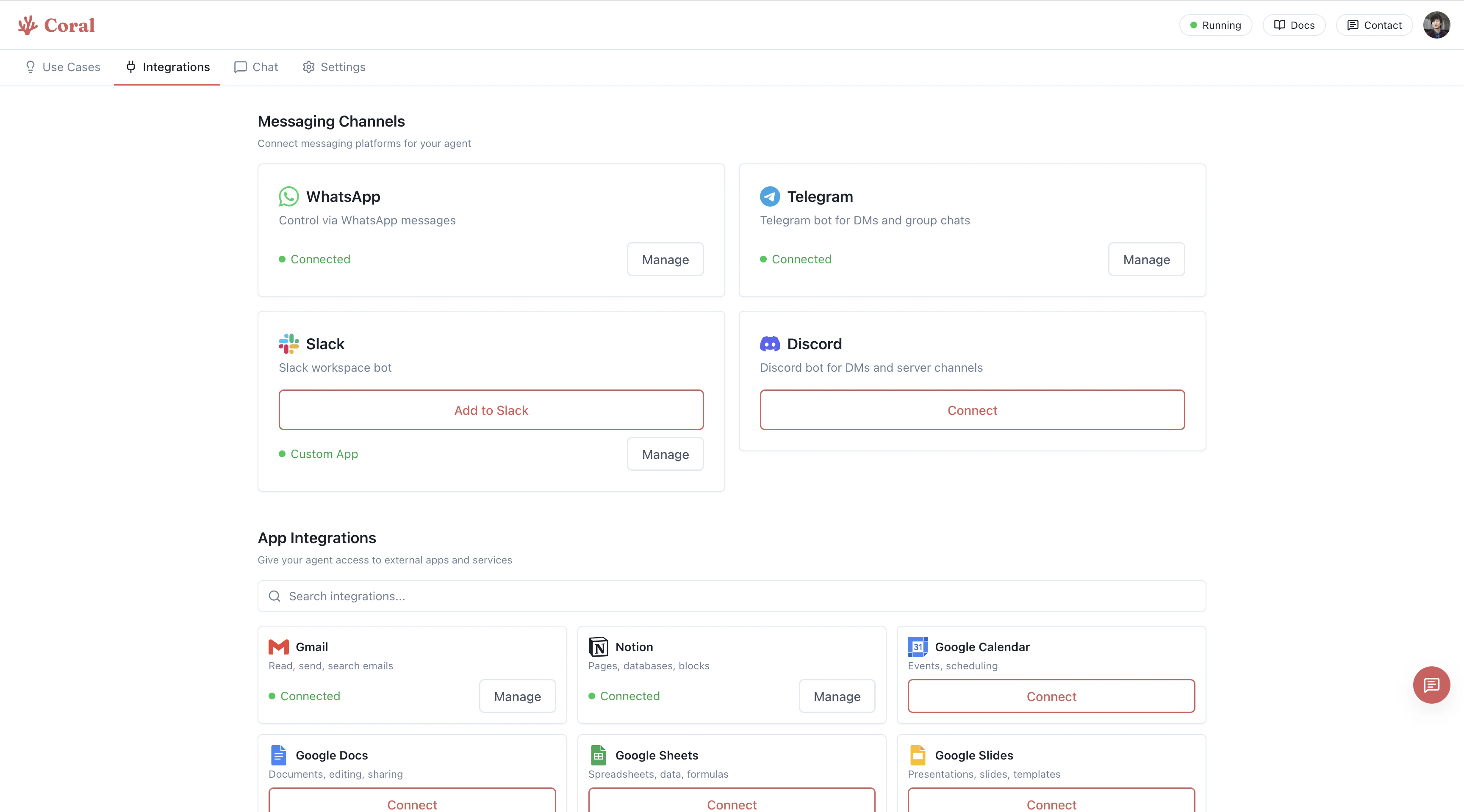
Integrations page with connected channels
- WhatsApp — Best if you want a genuinely ambient assistant. Most people check WhatsApp more than any other app. Voice messages work too.
- Discord — Best if you already use Discord for work or a community. You can add the bot to a server you control and interact there.
- Telegram — Good middle ground. Full-featured bot support, fast, and available on all platforms.
- Slack — Best for team setups where you want colleagues to share access to an assistant.
Try one use case template
Before you start building workflows from scratch, browse the Use Cases tab. These are pre-built prompt templates that walk your assistant through setting something up — and they’re the fastest way to understand what’s possible.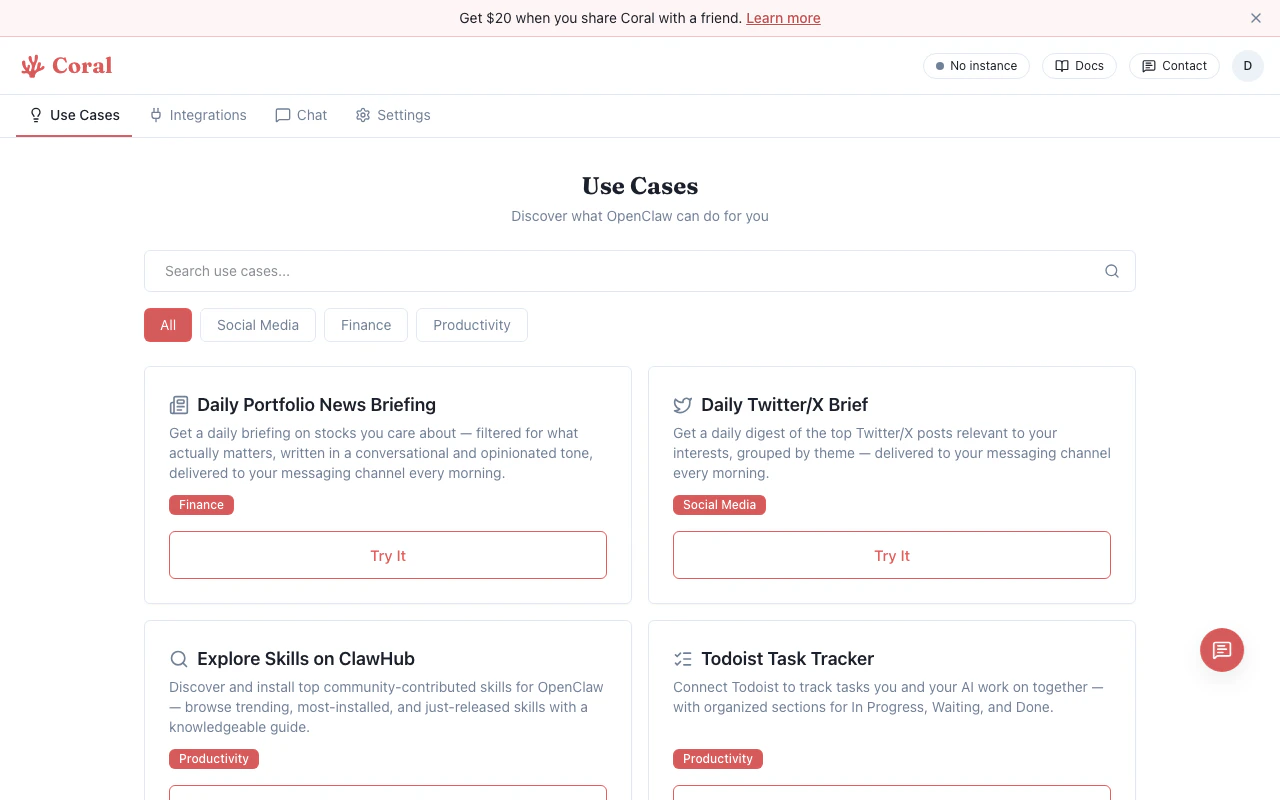
Use Cases page
- Daily Portfolio News Briefing — If you track stocks, this is operational in about two minutes.
- Daily Twitter/X Brief — Monitors topics and accounts you care about and delivers a digest.
- Explore Skills on ClawHub — Your assistant browses the skills marketplace with you and installs what’s relevant.
Days 2–3 — Make it yours
Give it a personality through conversation
One of the most consistently useful things you can do is shape how your assistant behaves and communicates. OpenClaw uses a configuration file calledSOUL.md to store its personality, preferences, and operating principles. You don’t need to edit any files — just describe what you want in chat.
Some examples of things to tell it:
- “Be more concise. I prefer bullet points over paragraphs.”
- “When you search the web, always cite your sources inline.”
- “I’m a software engineer. You can assume I’m comfortable with technical depth.”
- “Default to asking clarifying questions before starting a long task.”
- “Never send me a message without a clear next action or summary.”
SOUL.md based on what you tell it. These preferences persist across all future conversations.
Changes to
SOUL.md take effect in the next conversation, not the current one. If you update several things at once, start a new chat to see them in action.Connect your first tool
Once your assistant has a personality, give it something to act on. The fastest integrations to set up are through the App Integrations section on the Integrations page, which connects 70+ apps via Composio. The most immediately useful to connect first:
To connect: go to Integrations, find the app in the App Integrations section, and click Connect. OAuth-based integrations (Google, Slack) walk you through authorization in the browser. Others use an API key you paste in.
Pick the right model tier for the right task
Coral offers three model tiers, and switching between them is one of the most effective ways to manage your credit usage. The default is Standard (Claude Sonnet 4.6), which is the right choice for most things. But it’s worth knowing when to change it.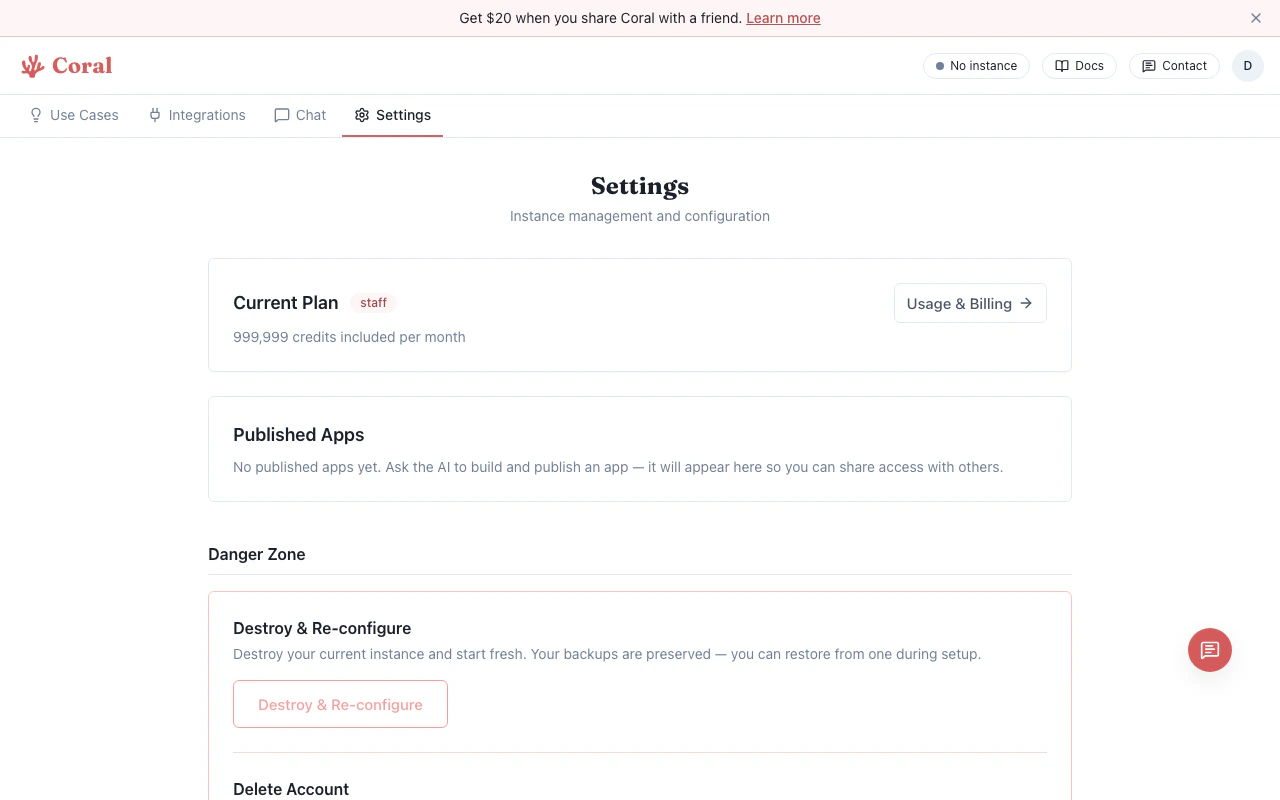
Settings page with model tier selection
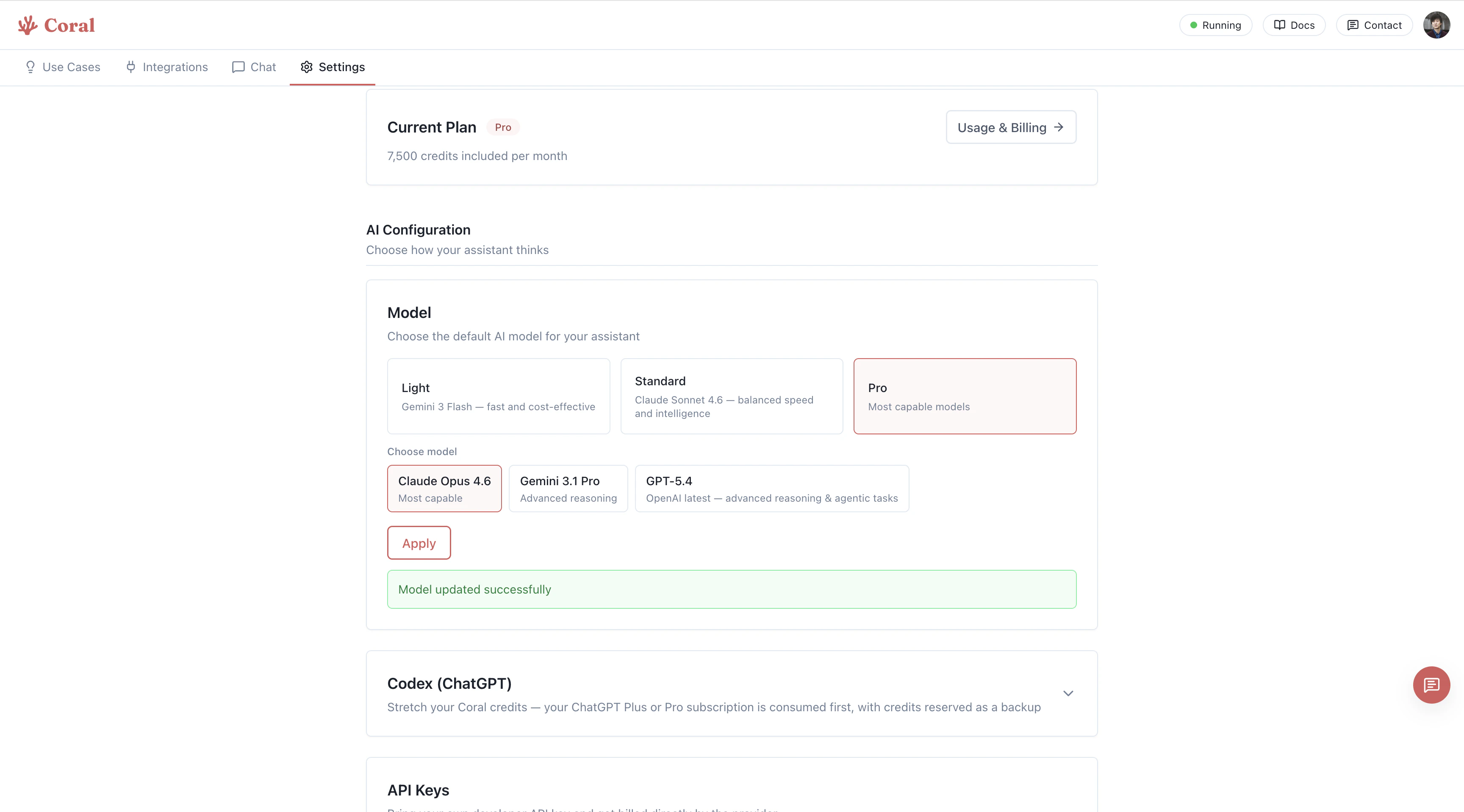
Model tier selection in Settings
To switch: go to Settings, find the Model section, select a tier, and click Apply. Changes take effect immediately.
Set up one proactive behavior
Proactive behaviors — things your assistant does on a schedule without you asking — are what separate OpenClaw from a chat interface. Ask your assistant to set one up through conversation. Some reliable starting points:- Morning briefing — “Every weekday at 8am, send me a summary of: today’s calendar events, any unread emails from the last 12 hours flagged as important, and the top 3 AI news headlines. Send it to my [WhatsApp/Discord/Telegram].”
- Daily digest — “Every evening at 6pm, summarize what we worked on today and list any open tasks.”
- Weekly review — “Every Friday at 4pm, ask me to do a weekly review and walk me through it.”
Week 1 — Build workflows
Understand skills
Skills are packages that give your assistant new capabilities. Some are bundled and active by default (web search, file handling). Others need an API key before they activate. A few require additional software to be installed in your sandbox first. Manage all of this from the Integrations page, in the Skills section:- Active (green badge) — Ready to use. Your assistant invokes these automatically when relevant.
- Needs Setup (blue highlight) — Installed but waiting for an API key. Click Set [KEY_NAME] and paste the key inline.
- Disabled — Configured but off. Click Turn on to re-enable instantly.
- Available to Install — Requires additional software. Click Ask agent to install and your assistant handles it.
- Web search — Enable this first if it isn’t already active. Almost every useful workflow eventually involves looking something up.
- Whisper (audio transcription) — If you want to send voice memos and have them transcribed to Notion, email drafts, or task lists. Requires an OpenAI API key.
- Image generation — If your work involves visual assets. Requires a Stability AI or Replicate key.
Work through a full workflow
By the end of Week 1, try building one end-to-end workflow that runs without your involvement. A good benchmark:“Every Monday at 9am, search for the top 5 posts about [your topic] from the past week on Twitter and Reddit. Write a 300-word summary of the key themes. Post it to my Notion page called ‘Weekly Research’ and send me a link on WhatsApp.”This single workflow tests: scheduling, web search, synthesis, Notion write access, and WhatsApp delivery. If all five work, your assistant is fully operational.
Reset context when a conversation gets heavy
Long conversations slow things down. OpenClaw maintains context within a session, but very long threads can make responses less focused and more expensive per message. A practical rule: if a conversation has gone past 30-40 exchanges and you’re switching to a new task, start a fresh chat. Your assistant’s persistent memory (SOUL.md, USER.md, skills configuration) carries over automatically — only the in-session context resets.
If you notice responses getting slower or less precise in a long thread, this is usually why. Start a new conversation and continue from there.
The delegation mindset
The biggest shift in using OpenClaw effectively is treating it less like a search engine (one question, one answer) and more like a capable person you’re delegating to. This means: Give context, not just commands. “Draft an email to our lead investor” is less useful than “Draft an email to our lead investor. We’re a Series A startup in B2B SaaS. We missed our MRR target by 12% last month. Tone should be transparent but confident. We have a plan to recover.” Describe the outcome, not the steps. Let your assistant figure out how to get there. “Find out who the decision-makers are at [company] and draft a cold outreach message for each of them” is better than micromanaging every search and draft. Correct it explicitly. If a response misses the mark, say specifically what was wrong: “Too formal. Cut the length in half. Lead with the question, not the context.” Your assistant updates its approach immediately.Going deeper
When to use the Control UI
The Coral dashboard gives you most of what you need. The Control UI — OpenClaw’s native interface — goes further. Open it from the Integrations page when you need:- Fine-grained per-channel system prompt customization
- Detailed tool and permission management
- Raw access to configuration files (
openclaw.json,SOUL.md,USER.md) - Viewing scheduled task history and logs
The Control UI opens in a new tab. It cannot be embedded due to browser security restrictions (
X-Frame-Options).Managing API keys at scale
If you have multiple skills each needing their own API key, managing them individually on each skill card gets unwieldy. Use Environment Variables instead:- Go to Settings > Environment Variables
- Add keys in
KEY_NAME=valueformat - Skills that reference those variable names pick them up automatically
Terminal access
For users who want full control, the Terminal page gives you a shell inside your sandbox. This is useful for:- Inspecting or editing config files directly
- Installing system packages that skills depend on
- Running one-off scripts or debugging
Model tier reference
Quick reference for choosing a tier by task:
When in doubt, Standard is the right default. Switch to Pro when you need it, Light when you’re doing something simple.
What’s next
Skills
Full reference for managing skills and API keys.
Integrations
Messaging channels and app connections in detail.
Models
Model tier details and credit costs.
Control UI
Advanced configuration via the OpenClaw dashboard.
Use Cases
Pre-built workflow templates to try.
Billing & Credits
Understand credit usage and manage your plan.