> ## Documentation Index
> Fetch the complete documentation index at: https://docs.coral.inc/llms.txt
> Use this file to discover all available pages before exploring further.
# Use Cases
> Pre-built workflow templates to get started quickly
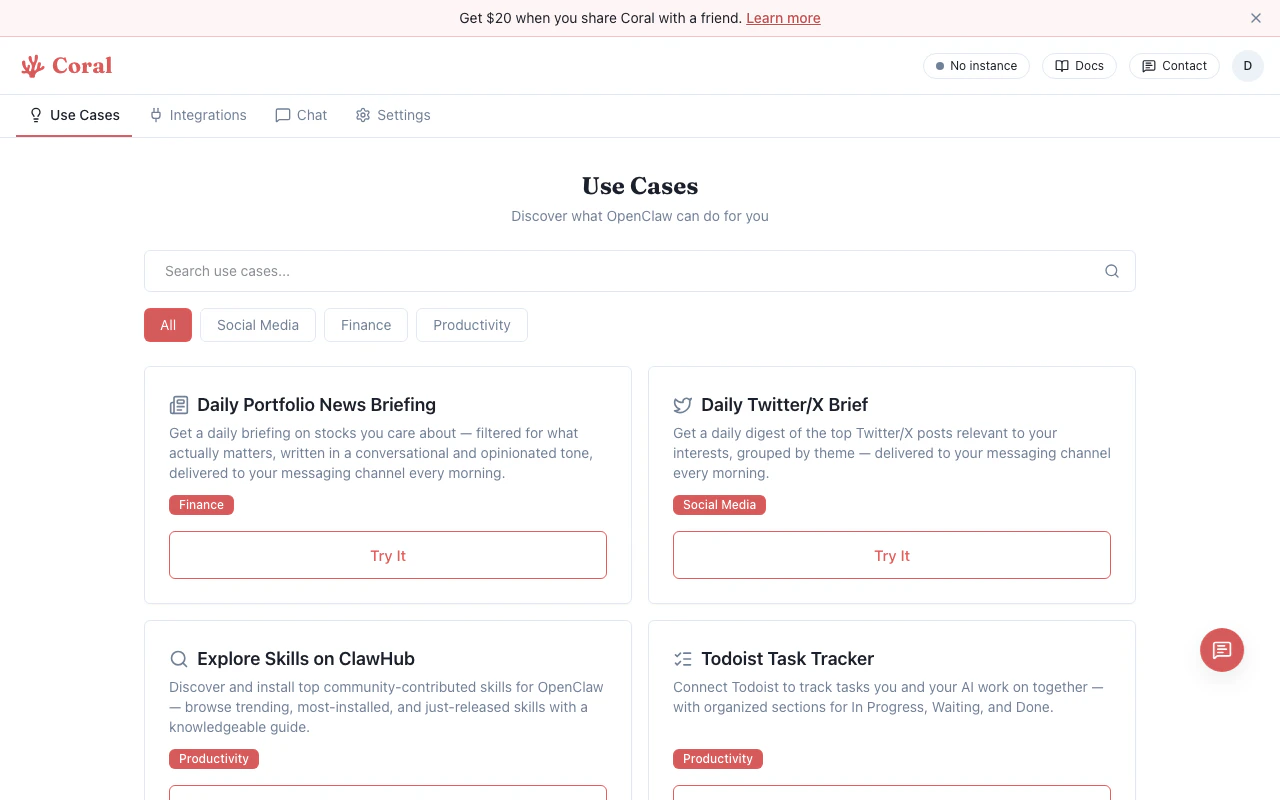
The Use Cases page provides pre-built workflow templates that show what your assistant can do. Each template includes a detailed prompt that guides your assistant through setup and ongoing operation.
 ## Browsing use cases
1. Navigate to the **Use Cases** tab in the sidebar.
2. Use the **search bar** to filter by title or description.
3. Use the **category pills** to filter: All, Social Media, Finance, Productivity.
## Trying a use case
Click **"Try It"** on any use case card. You'll be redirected to the Chat page with the full workflow prompt pre-filled in the input box. Press **Enter** to send, and your assistant walks you through setup step by step.
## Available templates
### Daily Portfolio News Briefing
**Category:** Finance
Sets up a daily morning briefing on stocks you track, delivered to your messaging channel. Your assistant:
1. Asks which stock tickers to track
2. Asks your preferred briefing time and messaging channel
3. Delivers a 500-800 word opinionated briefing each morning using the built-in web search tool
You can add or remove tickers at any time by asking your assistant.
### Daily Twitter/X Brief
**Category:** Social Media
Monitors Twitter/X for topics and accounts you care about and delivers a daily digest. Your assistant:
1. Asks which topics and accounts to follow
2. Asks your preferred time and messaging channel
3. Delivers the top 5-10 posts each morning, grouped by theme with summaries and links
### Explore Skills on ClawHub
**Category:** Productivity
Browse and install community-contributed skills from the ClawHub marketplace. Your assistant:
1. Pulls trending, most-installed, and newly released skills
2. Asks about your interests and searches for matching skills
3. Inspects skills before recommending them (shows stars, installs, descriptions)
4. Installs your chosen skills directly into your sandbox
A guided marketplace experience — like having a knowledgeable friend walk you through the options.
### Todoist Task Tracker
**Category:** Productivity
Connects to Todoist to help you track tasks collaboratively with your assistant. Setup:
1. Connect Todoist via the **App Integrations** section in the Integrations tab (your assistant checks if it's already connected)
2. Your assistant creates an organized project with sections: In Progress, Waiting, Done
3. Track and manage tasks through conversation
### Audio Journaling to Notion
**Category:** Productivity
Send voice memos via a messaging channel, and your assistant transcribes and organizes them in Notion. Setup:
1. Connect Notion via the **App Integrations** section in the Integrations tab (your assistant checks if it's already connected)
2. Enable the Whisper skill and provide an OpenAI API key
3. Your assistant creates a "Daily Journals" database in Notion
4. Send audio snippets — they're transcribed and organized by date
### Create Presentation Slides
**Category:** Productivity
Create animation-rich HTML presentations with distinctive visual styles — from scratch or by converting PowerPoint files. Your assistant:
1. Asks about the topic and purpose of your presentation (pitch deck, conference talk, tutorial, etc.)
2. Shows visual style options so you can pick what looks best — no design skills needed
3. Generates a single self-contained HTML file with animations, transitions, and responsive design
4. Supports keyboard, touch, and scroll navigation — zero dependencies, works anywhere
You can also share an existing PowerPoint file to convert it into a web presentation with an upgraded visual style.
## Creating your own workflows
Use cases are just prompts — you can write your own. Tips:
* Be explicit about setup steps (API keys, integrations needed)
* Describe the recurring behavior you want (daily briefing, event-triggered action, etc.)
* Reference specific features by name (Settings, Integrations, Environment Variables) so your assistant knows where to guide you
## Browsing use cases
1. Navigate to the **Use Cases** tab in the sidebar.
2. Use the **search bar** to filter by title or description.
3. Use the **category pills** to filter: All, Social Media, Finance, Productivity.
## Trying a use case
Click **"Try It"** on any use case card. You'll be redirected to the Chat page with the full workflow prompt pre-filled in the input box. Press **Enter** to send, and your assistant walks you through setup step by step.
## Available templates
### Daily Portfolio News Briefing
**Category:** Finance
Sets up a daily morning briefing on stocks you track, delivered to your messaging channel. Your assistant:
1. Asks which stock tickers to track
2. Asks your preferred briefing time and messaging channel
3. Delivers a 500-800 word opinionated briefing each morning using the built-in web search tool
You can add or remove tickers at any time by asking your assistant.
### Daily Twitter/X Brief
**Category:** Social Media
Monitors Twitter/X for topics and accounts you care about and delivers a daily digest. Your assistant:
1. Asks which topics and accounts to follow
2. Asks your preferred time and messaging channel
3. Delivers the top 5-10 posts each morning, grouped by theme with summaries and links
### Explore Skills on ClawHub
**Category:** Productivity
Browse and install community-contributed skills from the ClawHub marketplace. Your assistant:
1. Pulls trending, most-installed, and newly released skills
2. Asks about your interests and searches for matching skills
3. Inspects skills before recommending them (shows stars, installs, descriptions)
4. Installs your chosen skills directly into your sandbox
A guided marketplace experience — like having a knowledgeable friend walk you through the options.
### Todoist Task Tracker
**Category:** Productivity
Connects to Todoist to help you track tasks collaboratively with your assistant. Setup:
1. Connect Todoist via the **App Integrations** section in the Integrations tab (your assistant checks if it's already connected)
2. Your assistant creates an organized project with sections: In Progress, Waiting, Done
3. Track and manage tasks through conversation
### Audio Journaling to Notion
**Category:** Productivity
Send voice memos via a messaging channel, and your assistant transcribes and organizes them in Notion. Setup:
1. Connect Notion via the **App Integrations** section in the Integrations tab (your assistant checks if it's already connected)
2. Enable the Whisper skill and provide an OpenAI API key
3. Your assistant creates a "Daily Journals" database in Notion
4. Send audio snippets — they're transcribed and organized by date
### Create Presentation Slides
**Category:** Productivity
Create animation-rich HTML presentations with distinctive visual styles — from scratch or by converting PowerPoint files. Your assistant:
1. Asks about the topic and purpose of your presentation (pitch deck, conference talk, tutorial, etc.)
2. Shows visual style options so you can pick what looks best — no design skills needed
3. Generates a single self-contained HTML file with animations, transitions, and responsive design
4. Supports keyboard, touch, and scroll navigation — zero dependencies, works anywhere
You can also share an existing PowerPoint file to convert it into a web presentation with an upgraded visual style.
## Creating your own workflows
Use cases are just prompts — you can write your own. Tips:
* Be explicit about setup steps (API keys, integrations needed)
* Describe the recurring behavior you want (daily briefing, event-triggered action, etc.)
* Reference specific features by name (Settings, Integrations, Environment Variables) so your assistant knows where to guide you