> ## Documentation Index
> Fetch the complete documentation index at: https://docs.coral.inc/llms.txt
> Use this file to discover all available pages before exploring further.
# Web Terminal
> Access a command-line shell on your sandbox from the browser
The web terminal gives you direct shell access to your sandbox — right in your browser. No SSH client or key setup required.
## Opening the terminal
There are two ways to access the terminal:
### From Settings
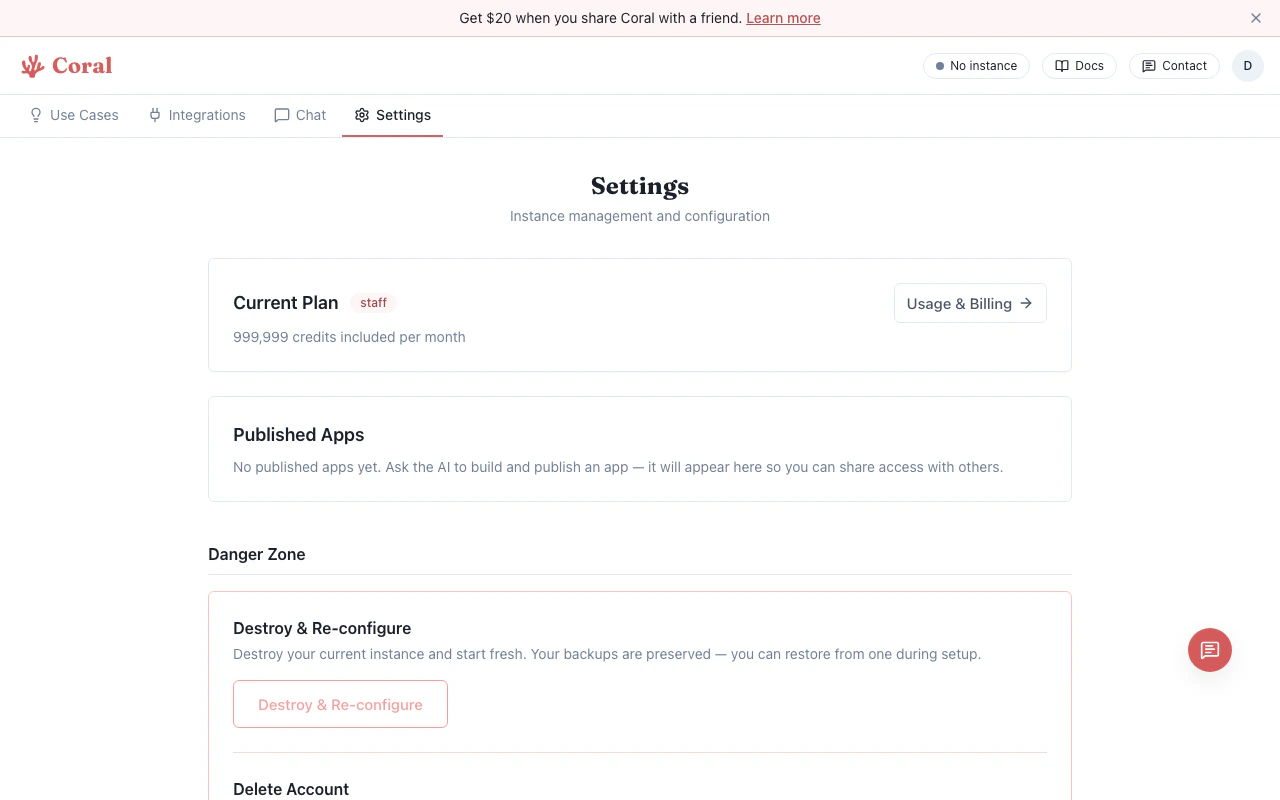
1. Go to the **Settings** page in your Coral dashboard.
2. Scroll to the **Tools & Access** section.
3. Click **"Open Terminal"**.
A new browser tab opens with a full terminal emulator (powered by [xterm.js](https://xtermjs.org/)). You're connected to a shell running inside your sandbox.
### From the Chat page
The **Computer Panel** on the chat page includes a **Terminal** tab for quick shell access without leaving the conversation. See [Chat — Computer Panel](/features/chat#computer-panel) for details.
 ## What you can do
The terminal gives you a standard Linux shell with access to:
* **OpenClaw CLI** — Run `openclaw` commands to inspect or modify your assistant's configuration.
* **File system** — Browse and edit files in your sandbox (configuration, logs, data).
* **Package management** — Install additional tools or dependencies.
* **Debugging** — Inspect running processes, view logs, and troubleshoot issues.
The terminal has full access to your sandbox. Be careful with destructive commands — changes are permanent and may affect your running assistant. If something goes wrong, you can restore from a backup.
## Connection details
* The terminal connects over a secure WebSocket through the Coral proxy. Your sandbox credentials never reach the browser.
* Sessions are authenticated with a time-limited ticket (30-minute TTL).
* If the connection drops, close the tab and re-open from the Settings page.
## When to use the terminal
Most users won't need the terminal for day-to-day use. It's primarily useful for:
* Advanced OpenClaw configuration not exposed in the Control UI
* Debugging issues with your assistant
* Installing custom tools or scripts
* Viewing raw log files
## What you can do
The terminal gives you a standard Linux shell with access to:
* **OpenClaw CLI** — Run `openclaw` commands to inspect or modify your assistant's configuration.
* **File system** — Browse and edit files in your sandbox (configuration, logs, data).
* **Package management** — Install additional tools or dependencies.
* **Debugging** — Inspect running processes, view logs, and troubleshoot issues.
The terminal has full access to your sandbox. Be careful with destructive commands — changes are permanent and may affect your running assistant. If something goes wrong, you can restore from a backup.
## Connection details
* The terminal connects over a secure WebSocket through the Coral proxy. Your sandbox credentials never reach the browser.
* Sessions are authenticated with a time-limited ticket (30-minute TTL).
* If the connection drops, close the tab and re-open from the Settings page.
## When to use the terminal
Most users won't need the terminal for day-to-day use. It's primarily useful for:
* Advanced OpenClaw configuration not exposed in the Control UI
* Debugging issues with your assistant
* Installing custom tools or scripts
* Viewing raw log files