> ## Documentation Index
> Fetch the complete documentation index at: https://docs.coral.inc/llms.txt
> Use this file to discover all available pages before exploring further.
# Skills
> Extend your assistant with domain-specific capabilities
Skills are packages that give your assistant specialized abilities — web search, Notion integration, audio transcription, and more. Your agent uses active skills automatically when relevant to a conversation.
Skills are managed from the **Integrations** page in the Coral dashboard, in the section below the messaging connections.
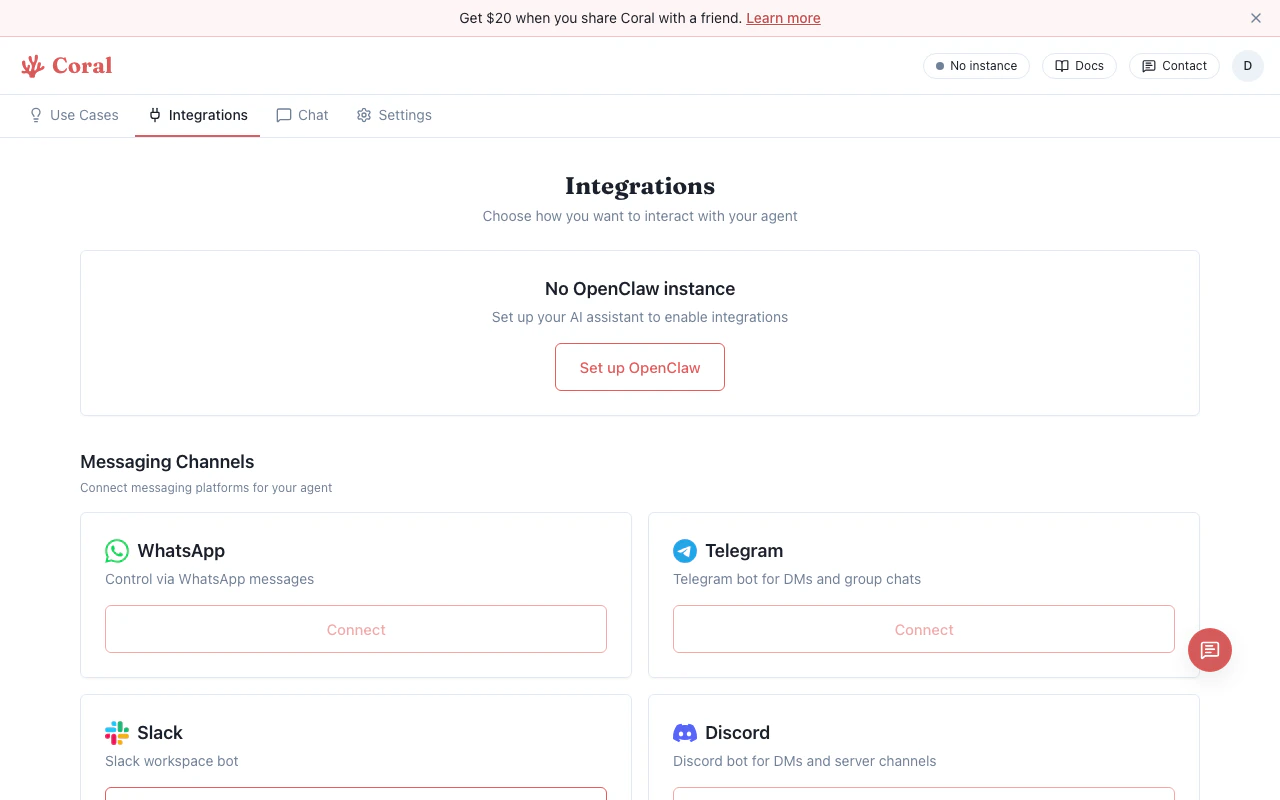 ## Skill categories
Skills are organized into four sections based on their current state:
### Active
Fully configured and ready to use. Your agent invokes these automatically when relevant. Each active skill card shows a green **"Active"** badge and offers:
* **"Change key"** — Update the API key for this skill
* **"Turn off"** — Disable the skill without removing it
* **"Docs"** — Link to the skill's documentation (when available)
### Needs Setup
Installed but missing an API key or configuration. These cards are highlighted in blue. Click **"Set \[KEY\_NAME]"** to enter the required key inline — paste your key, click **Save**, and the skill becomes active immediately.
### Disabled
Installed and configured but turned off. Click **"Turn on"** to re-enable. The skill becomes active instantly — no restart needed.
### Available to Install
Skills that require additional software (binaries) not yet present in your sandbox. Each card lists the missing dependencies (e.g., "Requires ffmpeg") and shows an **"Ask agent to install"** button. Clicking it opens the Chat page with a pre-filled message asking your assistant to install the needed software.
## Configuring API keys
Many skills require external API keys. You can provide these in two ways:
1. **Inline on the skill card** — In the Needs Setup section, click "Set \[KEY\_NAME]" and paste your key directly. This is the fastest path for a single key.
2. **Via Environment Variables** — Go to Settings > Environment Variables and add the key there. This is better for managing multiple keys at once. See [Environment Variables](/features/environment-variables).
Keys are stored securely in your sandbox's OpenClaw config. They never leave your isolated environment.
## Enabling and disabling skills
* **Active skills** → click **"Turn off"** on the card
* **Disabled skills** → click **"Turn on"** on the card
Changes take effect immediately — no gateway restart needed.
## Installing missing dependencies
For skills in the "Available to Install" section:
1. Click **"Ask agent to install"**
2. The Chat page opens with a message like "Please install \[skill name]"
3. Your assistant installs the required binaries via the terminal
4. Return to the Integrations page to see the skill move to Active or Needs Setup
## Skill metadata
Each skill card shows:
* **Name and emoji** — Descriptive label for the skill
* **Source badge** — Whether the skill is "bundled" (ships with OpenClaw) or from an external source
* **Description** — Brief explanation of what the skill does
* **Docs link** — Link to the skill's homepage or documentation (when available)
## Skill categories
Skills are organized into four sections based on their current state:
### Active
Fully configured and ready to use. Your agent invokes these automatically when relevant. Each active skill card shows a green **"Active"** badge and offers:
* **"Change key"** — Update the API key for this skill
* **"Turn off"** — Disable the skill without removing it
* **"Docs"** — Link to the skill's documentation (when available)
### Needs Setup
Installed but missing an API key or configuration. These cards are highlighted in blue. Click **"Set \[KEY\_NAME]"** to enter the required key inline — paste your key, click **Save**, and the skill becomes active immediately.
### Disabled
Installed and configured but turned off. Click **"Turn on"** to re-enable. The skill becomes active instantly — no restart needed.
### Available to Install
Skills that require additional software (binaries) not yet present in your sandbox. Each card lists the missing dependencies (e.g., "Requires ffmpeg") and shows an **"Ask agent to install"** button. Clicking it opens the Chat page with a pre-filled message asking your assistant to install the needed software.
## Configuring API keys
Many skills require external API keys. You can provide these in two ways:
1. **Inline on the skill card** — In the Needs Setup section, click "Set \[KEY\_NAME]" and paste your key directly. This is the fastest path for a single key.
2. **Via Environment Variables** — Go to Settings > Environment Variables and add the key there. This is better for managing multiple keys at once. See [Environment Variables](/features/environment-variables).
Keys are stored securely in your sandbox's OpenClaw config. They never leave your isolated environment.
## Enabling and disabling skills
* **Active skills** → click **"Turn off"** on the card
* **Disabled skills** → click **"Turn on"** on the card
Changes take effect immediately — no gateway restart needed.
## Installing missing dependencies
For skills in the "Available to Install" section:
1. Click **"Ask agent to install"**
2. The Chat page opens with a message like "Please install \[skill name]"
3. Your assistant installs the required binaries via the terminal
4. Return to the Integrations page to see the skill move to Active or Needs Setup
## Skill metadata
Each skill card shows:
* **Name and emoji** — Descriptive label for the skill
* **Source badge** — Whether the skill is "bundled" (ships with OpenClaw) or from an external source
* **Description** — Brief explanation of what the skill does
* **Docs link** — Link to the skill's homepage or documentation (when available)