> ## Documentation Index
> Fetch the complete documentation index at: https://docs.coral.inc/llms.txt
> Use this file to discover all available pages before exploring further.
# Integrations
> Connect your AI assistant to Discord, WhatsApp, and more
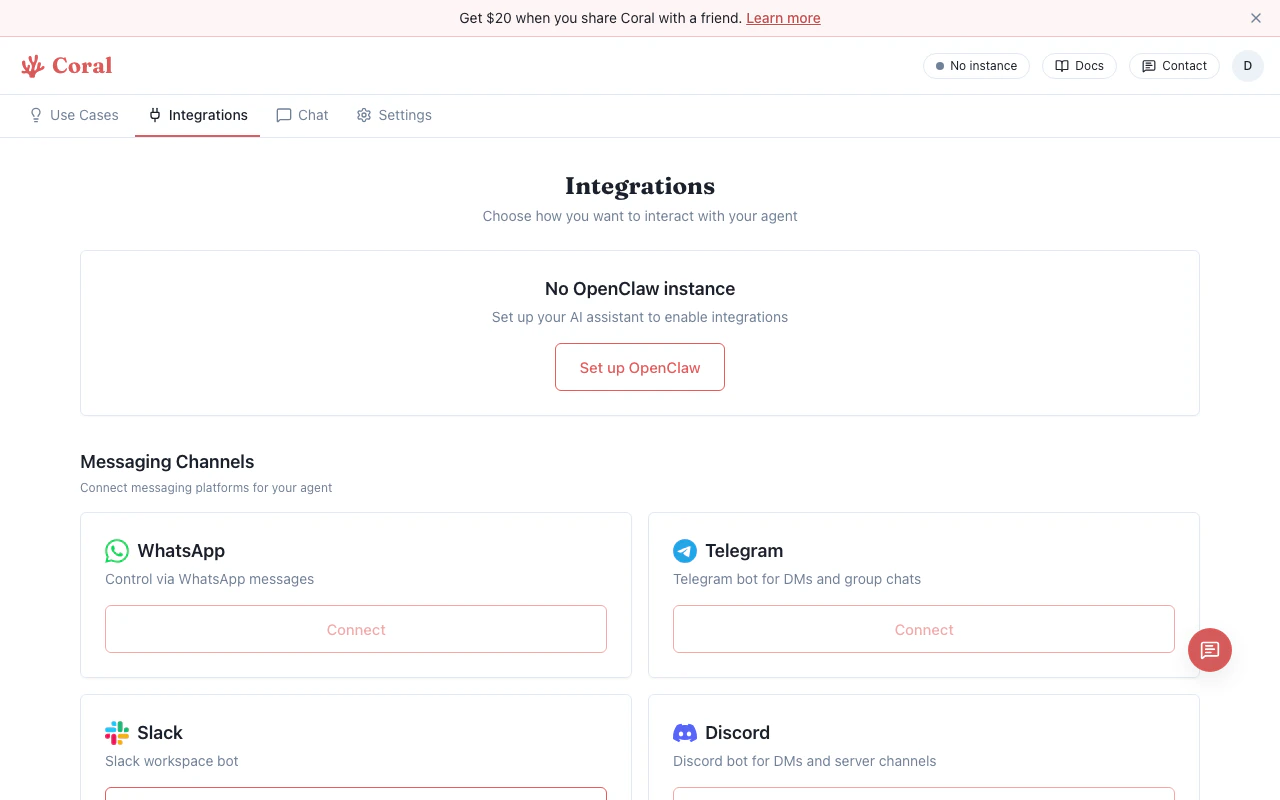
Coral lets you connect your OpenClaw assistant to messaging platforms and productivity tools so you can interact with it wherever you work.
## Messaging
Add your assistant as a Discord bot in your server.
Chat with your assistant through WhatsApp.
Connect your assistant to a Slack workspace.
Use your assistant via Telegram.
## App Integrations
Coral integrates with **500+ apps**, giving your assistant the ability to read and write data across your favorite tools.
Gmail, Calendar, Docs, Sheets, Slides, Drive, Tasks, Maps, Analytics, Meet.
Teams, Outlook, OneDrive, SharePoint, Excel.
GitHub, GitLab, Bitbucket, Asana, Linear, Trello, ClickUp, Confluence, Sentry.
HubSpot, Salesforce, Attio, Intercom, Zendesk.
Notion, Airtable, Zoom, Dropbox, Figma, Slack, Monday, Todoist, Calendly, Miro, Canva.
Stripe, Square, QuickBooks, Xero, FreshBooks.
## Setting up an integration
1. Go to the **Integrations** page in your Coral dashboard.
2. Find the platform you want to connect.
3. Click **"Connect"** to expand the setup panel.
4. Follow the platform-specific instructions.
 Setup varies by integration type:
* **Sandbox-native** (Discord, WhatsApp, Telegram) — Create a bot on the platform, enter the API token in Coral. Credentials are stored in your sandbox and never leave your isolated environment.
* **OAuth** (Slack, Google Workspace) — Click **"Connect"**, sign in with your account, and authorize access. Tokens are managed by Coral.
* **Third-party** (App integrations) — Connect through the authorization flow to link apps like GitHub, Jira, Linear, Notion, Stripe, and more.
Sandbox-native integration credentials are stored securely in your sandbox and never leave your isolated environment. OAuth-based integrations store encrypted tokens on Coral's servers to enable proxy access.
## Managing integrations
Once connected, each integration card shows its status:
* **Connected** — The integration is active and your assistant is reachable on that platform.
* **Disconnected** — The integration was configured but is not currently active (e.g., the bot was removed from the server).
Click **"Manage"** on a connected integration to update credentials or disconnect.
## Using the Control UI for advanced setup
For integrations that require more detailed configuration (custom system prompts per channel, tool restrictions, etc.), open the **Control UI** from the Integrations page. The OpenClaw dashboard provides full control over per-channel behavior.
## Skills
The Integrations page also hosts the **Skills** section below the messaging connections. Skills extend your agent with domain-specific capabilities like web search, audio transcription, and integration with external services. See [Skills](/features/skills) for full documentation.
Setup varies by integration type:
* **Sandbox-native** (Discord, WhatsApp, Telegram) — Create a bot on the platform, enter the API token in Coral. Credentials are stored in your sandbox and never leave your isolated environment.
* **OAuth** (Slack, Google Workspace) — Click **"Connect"**, sign in with your account, and authorize access. Tokens are managed by Coral.
* **Third-party** (App integrations) — Connect through the authorization flow to link apps like GitHub, Jira, Linear, Notion, Stripe, and more.
Sandbox-native integration credentials are stored securely in your sandbox and never leave your isolated environment. OAuth-based integrations store encrypted tokens on Coral's servers to enable proxy access.
## Managing integrations
Once connected, each integration card shows its status:
* **Connected** — The integration is active and your assistant is reachable on that platform.
* **Disconnected** — The integration was configured but is not currently active (e.g., the bot was removed from the server).
Click **"Manage"** on a connected integration to update credentials or disconnect.
## Using the Control UI for advanced setup
For integrations that require more detailed configuration (custom system prompts per channel, tool restrictions, etc.), open the **Control UI** from the Integrations page. The OpenClaw dashboard provides full control over per-channel behavior.
## Skills
The Integrations page also hosts the **Skills** section below the messaging connections. Skills extend your agent with domain-specific capabilities like web search, audio transcription, and integration with external services. See [Skills](/features/skills) for full documentation.