> ## Documentation Index
> Fetch the complete documentation index at: https://docs.coral.inc/llms.txt
> Use this file to discover all available pages before exploring further.
# Chat
> Send messages, attach images, and interact with your AI assistant
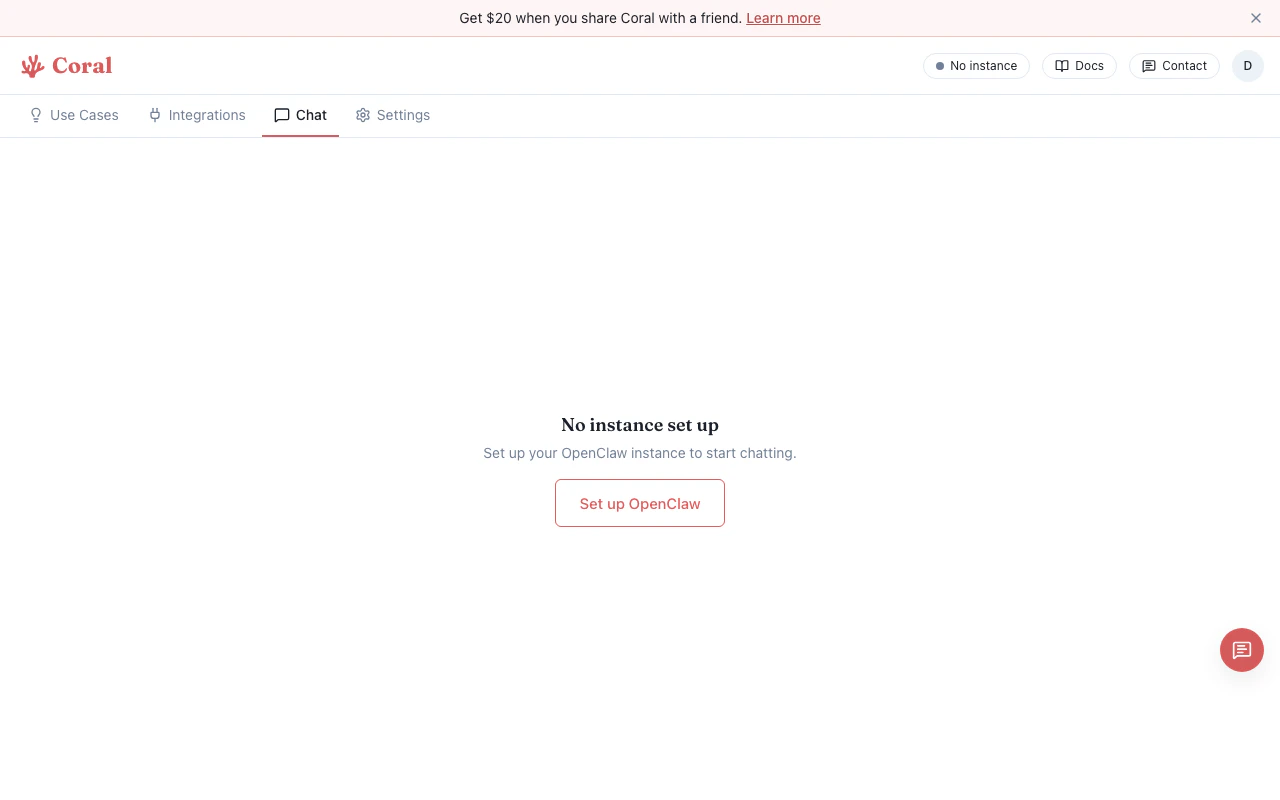
The chat page is the primary way to interact with your AI assistant. Open it from the **Chat** tab in the Coral dashboard.
 ## Sending messages
Type your message in the text box at the bottom and press **Enter** to send. Use **Shift+Enter** to insert a newline without sending.
Your assistant's response streams in real-time — you'll see text appear as it's generated.
## Attaching images
You can send images alongside your message for the assistant to analyze. Supported formats: JPEG, PNG, GIF, WebP, and SVG.
Three ways to attach:
1. **Paperclip icon** — Click the attachment button in the input area to open the file picker.
2. **Drag and drop** — Drag image files onto the input area. A "Drop files here" overlay appears.
3. **Clipboard paste** — Copy an image and press **Cmd+V** (Mac) or **Ctrl+V** (Windows/Linux).
Attached images appear as thumbnail chips above the input. Click the **X** on any chip to remove it before sending.
## Thinking indicator
When you send a message, a pulsing **brain icon** with "Thinking..." appears while your assistant processes your request. This indicator disappears automatically once the response starts streaming.
## Tool calls
Your assistant can invoke tools during a conversation — web search, code execution, file operations, and more. When it does, you'll see inline tool call cards in the response:
* **Spinner icon** — Tool call in progress
* **Checkmark icon** — Tool call completed
Click any tool call card to open a detail modal showing the full input and output. The modal includes a **Source / Rendered** toggle to switch between the raw JSON and a formatted view.
## Quick start prompts
When the chat is empty, four suggested prompt buttons appear below the greeting. These correspond to the pre-built [Use Cases](/features/use-cases) and give you a one-click way to start a guided workflow. Clicking one pre-fills the input — press Enter to send.
## Credit usage
Each message shows an estimated credit cost, calculated from the tokens used. This helps you monitor usage as you chat. Your overall credit balance is visible in the **Settings** page under **Usage & Billing**.
A yellow warning bar appears when you've used 80% of your plan's credits for the period. If credits are fully exhausted, a red bar appears and new messages are blocked until credits reset or you [buy more](/getting-started/billing#buying-more-credits).
## Computer Panel
The chat page includes a collapsible **Computer Panel** on the right side that gives you live access to your sandbox environment without leaving the conversation. The panel has multiple tabs:
* **Desktop** — Live VNC view of your sandbox's graphical desktop
* **Files** — Browse files in your sandbox
* **Terminal** — Command-line access
* **Control** — Quick access to the OpenClaw Control Panel
Drag the divider between chat and the Computer Panel to resize. On smaller screens, the panel overlays the chat.
The Desktop tab requires VNC to be running in your sandbox. See [Remote Desktop](/features/remote-desktop) for details.
## New session
Click the **New Session** button (or the icon in the header) to start a fresh conversation. A confirmation dialog appears since this clears your current chat history from the view. Your full message history is preserved in your sandbox and accessible via the [Control UI](/features/control-ui).
## Stopping generation
While the assistant is streaming a response, a **"Stop generating"** button appears above the input. Click it to abort the current response.
## Message history
Your conversation history loads automatically when you open the chat page. Messages persist across sessions in your sandbox — close the tab and come back later, and your history is still there.
## Offline states
If your sandbox isn't running, the chat page shows a status message instead of the input:
* **No instance set up** — Links to the onboarding page to create your sandbox.
* **Instance paused** — Links to the Integrations page to resume.
* **Setting up / Resuming** — Shows a loading animation while your sandbox starts.
## Sending messages
Type your message in the text box at the bottom and press **Enter** to send. Use **Shift+Enter** to insert a newline without sending.
Your assistant's response streams in real-time — you'll see text appear as it's generated.
## Attaching images
You can send images alongside your message for the assistant to analyze. Supported formats: JPEG, PNG, GIF, WebP, and SVG.
Three ways to attach:
1. **Paperclip icon** — Click the attachment button in the input area to open the file picker.
2. **Drag and drop** — Drag image files onto the input area. A "Drop files here" overlay appears.
3. **Clipboard paste** — Copy an image and press **Cmd+V** (Mac) or **Ctrl+V** (Windows/Linux).
Attached images appear as thumbnail chips above the input. Click the **X** on any chip to remove it before sending.
## Thinking indicator
When you send a message, a pulsing **brain icon** with "Thinking..." appears while your assistant processes your request. This indicator disappears automatically once the response starts streaming.
## Tool calls
Your assistant can invoke tools during a conversation — web search, code execution, file operations, and more. When it does, you'll see inline tool call cards in the response:
* **Spinner icon** — Tool call in progress
* **Checkmark icon** — Tool call completed
Click any tool call card to open a detail modal showing the full input and output. The modal includes a **Source / Rendered** toggle to switch between the raw JSON and a formatted view.
## Quick start prompts
When the chat is empty, four suggested prompt buttons appear below the greeting. These correspond to the pre-built [Use Cases](/features/use-cases) and give you a one-click way to start a guided workflow. Clicking one pre-fills the input — press Enter to send.
## Credit usage
Each message shows an estimated credit cost, calculated from the tokens used. This helps you monitor usage as you chat. Your overall credit balance is visible in the **Settings** page under **Usage & Billing**.
A yellow warning bar appears when you've used 80% of your plan's credits for the period. If credits are fully exhausted, a red bar appears and new messages are blocked until credits reset or you [buy more](/getting-started/billing#buying-more-credits).
## Computer Panel
The chat page includes a collapsible **Computer Panel** on the right side that gives you live access to your sandbox environment without leaving the conversation. The panel has multiple tabs:
* **Desktop** — Live VNC view of your sandbox's graphical desktop
* **Files** — Browse files in your sandbox
* **Terminal** — Command-line access
* **Control** — Quick access to the OpenClaw Control Panel
Drag the divider between chat and the Computer Panel to resize. On smaller screens, the panel overlays the chat.
The Desktop tab requires VNC to be running in your sandbox. See [Remote Desktop](/features/remote-desktop) for details.
## New session
Click the **New Session** button (or the icon in the header) to start a fresh conversation. A confirmation dialog appears since this clears your current chat history from the view. Your full message history is preserved in your sandbox and accessible via the [Control UI](/features/control-ui).
## Stopping generation
While the assistant is streaming a response, a **"Stop generating"** button appears above the input. Click it to abort the current response.
## Message history
Your conversation history loads automatically when you open the chat page. Messages persist across sessions in your sandbox — close the tab and come back later, and your history is still there.
## Offline states
If your sandbox isn't running, the chat page shows a status message instead of the input:
* **No instance set up** — Links to the onboarding page to create your sandbox.
* **Instance paused** — Links to the Integrations page to resume.
* **Setting up / Resuming** — Shows a loading animation while your sandbox starts.